Tampilkan postingan dengan label a. Tampilkan semua postingan

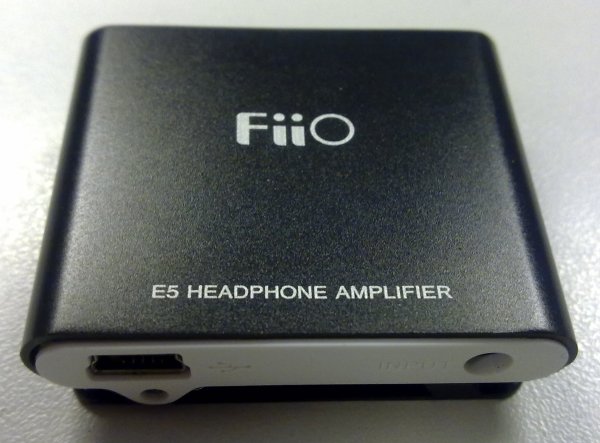
Instructions on How To Use The Fiio e5 amplifier With a Music Player


The Fiio e5 amplifier is a great, handy and small mini amplifier, that makes your earphones and headphones sound louder. What the Fiio e5 does it takes the input signal from your music device and amplifies and sends out an amplified signal to your headphones, which increase watts and loudness. The Fiio e5 is a excellent amp in my own opinion, its small, you an clip it on your trousers pocket and charge it up using a mini usb cable or charger. If you have this amplifier and dont know how to wire it with your mp3 player, use the instructions that are provided below to help you set it up.

Instructions:

1)Make sure that the Fiio e5 amplifier is charged up and has sufficient power.

2)If you bought your amplifier brand new or second hand with all the bits, look inside the box, you will see a double ended 3.5mm jack wire.

3)Connect the jack into the input jack on the amp, its the jack on the bottom side were the mini usb charging connecter is located.

4)Once you have made that connection, connect the other end into the headphone socket on your music player.

5)So now the amplifier can receive an input signal, connect your headphone into the headphone jack, located on the top side of the amplifier, near the volume control buttons.

6)Press down the power button on the amplifier, when the amp is powered on you will see a blue colour led light up.
Read More..

How To Stop a House Burglar Alarm That Wont Go Off and Stop Beeping


An alarm protects your home from getting broken into because if the burglars attempt to break in, the alarm will set off and they dont like that! If your house burglar alarm is beeping really loud for the sake of it, the people in your neighborhood will start to get annoyed and you will be panicking trying all sorts of solution to stop the alarm siren from beeping so loud. Dont worry though because i have the top 3 instructions that are guaranteed to silence your alarm.

Instructions:

1)Your alarm system will have a password that you punch into the control panel, this is to silence the alarms siren. If you now the password for it, then enter it into the control panel, once you have entered it, the alarm should shut off the siren. If it doesnt work, then re enter the password, as you might have made a mistake the first time you entered it. If that dont work, the password is incorrect, so immediately find the "Test/Diagnostics" menu option in the control box settings and select it. It will put a stop to the alarm because the alarm goes into testing mode.

2)Open the control panel box, you will need a screwdriver to unscrew the tight screws holding the cover in place. Then remove the control panel box cover and unscrew the battery caps from the top of the backup battery, then pull the wires off the battery contacts.

3)If the control box doesnt have a backup battery, then it will have fuses on the circuit board, pull out the fuse that protects the alarm siren. If you pull it out, it will break the circuit that provides power to the siren.
Read More..

How To Update a TomTom GPS Sat Nav For Free


If you have a TomTom gps satellite navigation system, chances are it is probably not running the latest software version and latest maps. If you own a TomTom sat nav, updating it to the latest software version will allow your TomTom to be more reliable, as the update can include fixed bugs and recent road layout changes.

Instructions On How To Update Your TomTom Sat Nav:

1)If you dont already have the TomTom software CD installed onto your computer, then you would need to install it. Once installed, launch the TomTom home software, which can be launched by double clicking the TomTom desktop icon.

2)Using the the TomTom PC docking station, connect your TomTom sat nav to your computer. If you dont have a PC docking station, you can use a mini usb cable, as most TomTom sat navs use that type of cable to make a connection with a computer.

3)Look at the top of the TomTom home software, you will see a gray icon that says "Update my device", once found click on the icon. Clicking the icon will begin the updating process and computer will connect to the TomTom server, using your internet connection to see if there is any available updates to enhance the performance and reliability of your sat nav.

4)If there is any available software updates for your TomTom, they will show up on the screen and then click "Update and Install". The TomTom home software will automatically download the updates your sat nav requires and also installs them automatically.

5)When the TomTom is finished updating, simply remove the TomTom from the PC docking station.

Read More..

How To Remove a Speaker Grill Cover From a Car Speaker


Most car speakers are fitted with an mesh speaker grill to protect the speaker cone from getting damaged and prevent dirt to build up from everyday use. The speaker grill is made from a metal called aluminum and can be removed if you want to see the speaker cone. You might want to consider doing this if the speaker cone matches the color of your ride or if you want to see how much excursion the speaker cone can produce. If you decide to remove the speaker grill from the speaker, you can reattach the speaker grill back on, all you have to do is reverse the process.

1) A speaker grill is held in place on top of the speaker using screws. So you will need to remove all 4 screws located in each corner. So get a Philips head screwdriver and remove all 4 screws. Once you have removed them all, you might want to place them into a small plastic container so you dont loose them.

2) Now that the screws holding the speaker grill are removed, the speaker grill can now move freely because there is nothing holding it downwards. So using both hands, grab both sides of the speaker grill and carefully push it upwards to detach it.

3) Now that the speaker grill is removed because you removed its screws, the speaker will now have nothing to hold it down. This can cause the speaker to move about when you are driving your car with the music bumping loud, which can causing rattling sounds to occur. So insert all 4 screws you remove earlier on back into there screws holes and using your Philips head screwdriver, tighten each individual screw to eliminate this problem.
Read More..

Windows 8 A beautiful Start

 
Hallo sobat gamers lama tak jumpa! Saya mohon maaf, karena tidak bisa membalas komentar yang ada dan juga banyak file-file yang sudah di remove oleh hosting yang bersangkutan. Mudah-mudahan setelah selesai menghadapi ujian sudah bisa kembali ke kegiatan blogging. Jadi sekali lagi saya mohon maaf dan terimakasih kepada semua pengunjung yang setia berkunjung ke blog ini :)

Ok kita kembali ke topik. Sudah tau windows 8? pasti tau dong! Windows 8 merupakan sistem operasi terbaru keluaran Microsoft. Sistem operasi ini mulai dikembangkan sejak tahun 2009 (sebelum windows 7 dirilis) dan pertama kali diperkenalkan pada ajang CES 2011.

Saat ini Windows 8 sudah mencapai versi final. Dengan berbagai perubahan diantaranya berfokus pada perangkat mobile, mengusung teknologi baru seperti USB 3.0, NFC, Cloud Computing, Antivirus bawaan, dan masih banyak lagi. Windows 8 juga memperkenalkan user interface baru yang dinamakan "Metro UI" (sekarang jadi "Windows 8 UI") bersamaan dengan Start Screen (pengganti start menu) yang menampilkan tiles dari masing-masing aplikasi.

Tampilan Star Screen yang merupakan salah satu fitur andalan Windows 8 dengan Live Tiles
Ok sedikit review singkat mengenai Windows 8. Kalian bisa lihat review yang lebih lengkap di
http://en.wikipedia.org/wiki/Windows_8
http://www.techradar.com/reviews/pc-mac/software/operating-systems/windows-8-1093002/review

Mulai saat ini Game Center Blog akan membahas tips dan trick Windows 8. Selamat menikmati bagi pengguna Windows 8 :)
Read More..